
Merge
Blend multiple photos into one
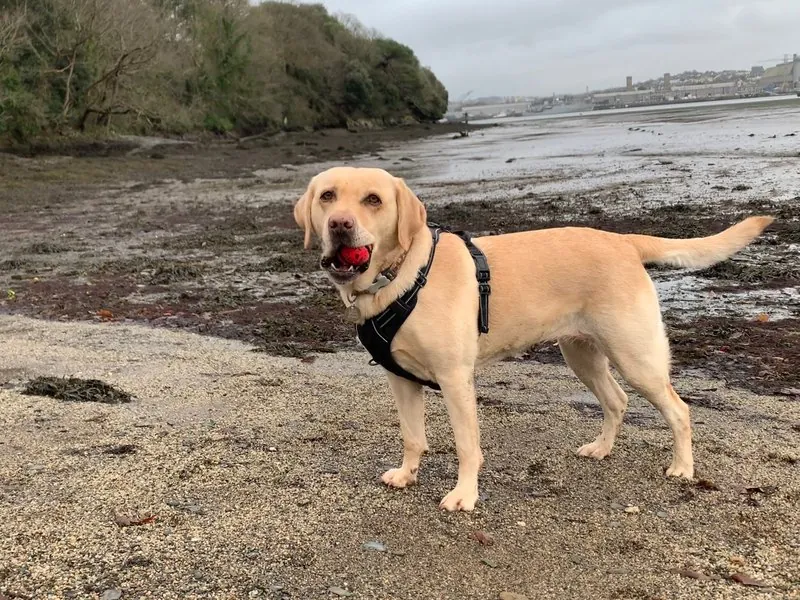
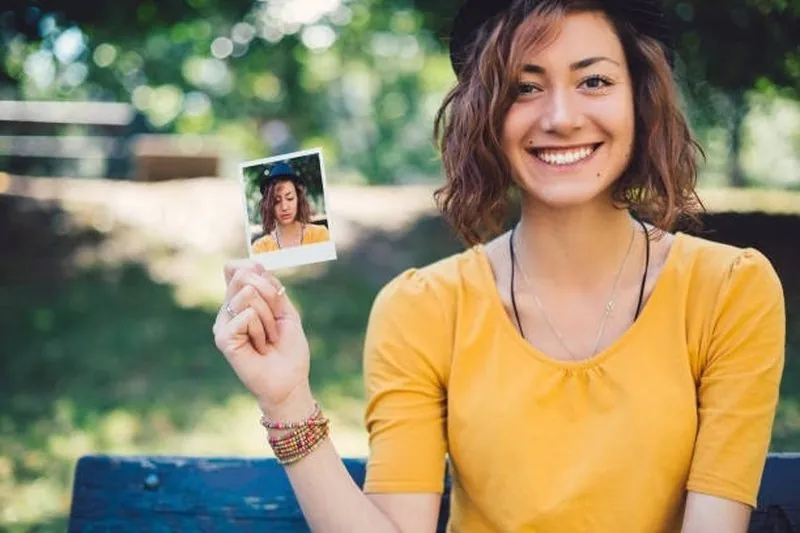
Combine the subjects of several photos — people, pets, whole groups — into one new picture using AI composition.
- Combine up to 6 photos
- Get everyone in one picture
- Apply one image's art style to another
- Add more people to a finished merge
How it works
Add your photos.
Describe the merge.
See the result.
What people use it for
Group photos that never happened — the person holding the camera, the relative who arrived late, the friend who couldn't come.
People and pets together, when the dog refused to sit still at the right moment.
Putting someone somewhere — into the room, the beach, the garden from another picture, rather than onto a blank background.
Borrowing a look from one image and carrying it across to another.
The first photo does more work than the others
Three starting points come written for you: a group photo, people with a pet, or putting everyone into the scene of the first picture. Choose that last one and the first picture is the setting — everyone else is placed into it, so the photo you put first should be the one whose background you want to keep.
You also don't have to get everyone in at once, and you shouldn't try. Merge two or three, look at the result, then merge that result with the next photo — a finished merge becomes the first photo of the next round. Each round is yours to approve before you go on, which is far more reliable than asking for a dozen people in one attempt.
Frequently Asked Questions
How many photos can I combine?
Six in a single run — and because a finished merge can go into the next one, the number of people you can end up with is larger than six.
Do I have to write the instructions myself?
No. Pick one of the three starting points and it's written for you. You can also change that sentence, or clear it and write your own from scratch — the starting points are a convenience, not a menu you have to choose from.
Does the order of the photos matter?
Yes, if you're placing people into the first photo's scene. That one is the setting; the rest are the people. For a plain group photo the order matters much less.
Will everyone still look like themselves?
The built-in instructions are written around it: each one asks for every face to be kept exactly as it appears in its own photo.
The bigger factor is how much you ask for. The model changes what you tell it to change, so a request to put four people together will hold faces better than a request to put four people together, change the season and dress everyone for a wedding. Ask for the merge and little else — if you want the rest, do it afterwards in Edit, where you can change one thing at a time.
Can I add someone afterwards?
Yes, and it’s the recommended way to build anything large. Merge what you have, then merge the result with the next photo.
What does it cost?
Merge is charged per run, and each round of adding people is a run of its own. Current costs for every tool are on the pricing page. See pricing
Better together
Every PixLab tool works on the same image and hands off to the next.