Expand
Give your photo more room
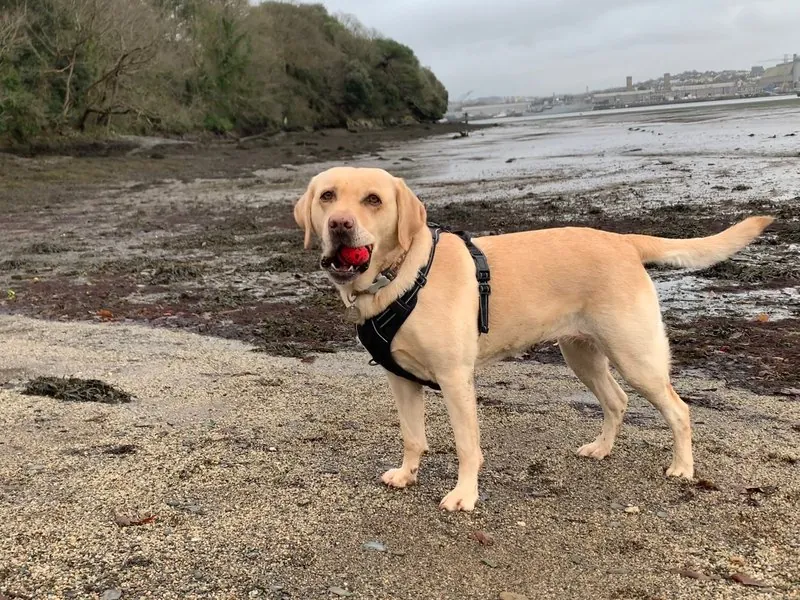
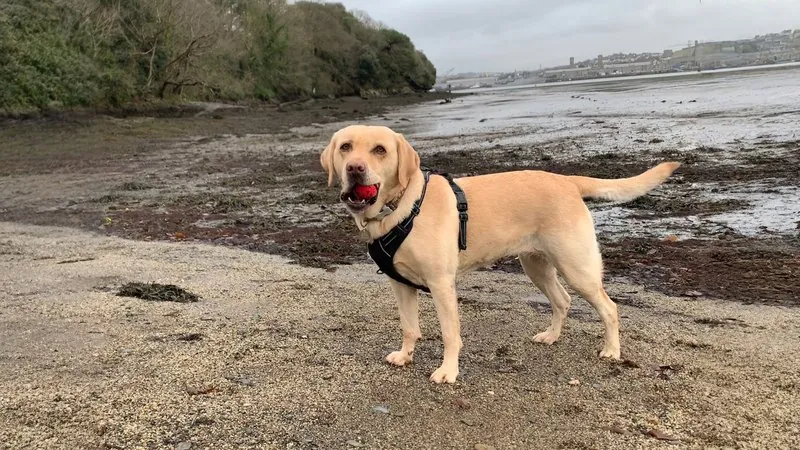
Extend a photo, illustration or artwork past its original edges — a little more room or a whole new shape — using AI outpainting.
- Turn a portrait photo into a widescreen one
- Add more background around your subject
- Describe what should appear in the new space
- Fit any shape without cropping your photo
How it works
Upload a photo.
Pick a shape.
Watch it grow.
What people use it for
Making a tall photo fit a wide frame, without cutting anyone's head off.
Giving a subject room to breathe when the original was cropped in too tight.
Fitting a shape you've already committed to — a canvas, a frame you own, a gap on a wall.
Rescuing a photo taken too close, where stepping back wasn't an option at the time.
Cropping in reverse
Everyone knows what cropping does: you pick a shape and lose whatever falls outside it. Expanding is the same idea backwards. You pick a shape and the picture grows to fill it — everything you photographed stays, and the new shape is made by adding rather than trimming.
It's why the shape you started with is the one option you can't choose. There'd be nothing to add.
Frequently Asked Questions
What shapes can I choose?
Seven, from square through to tall, including the standard photo proportions — so you can match a frame you already own rather than working out what will fit.
What appears in the new space?
A continuation of your photo: more of the beach, more of the sky, more of the room, matched to the light and colour of what's already there.
Can I decide what goes there?
Yes, in a sentence, and it's optional. Leave it empty and the scene carries on by itself; fill it in when you have something particular in mind.
Will the join show?
No, because there isn't one. The new shape is generated as a whole picture rather than as strips pasted onto the edges, so there's no seam to find.
How much will it add?
Each shape shows you before you commit. Some pairings only add a narrow strip down two sides — the tool will say so, and that's usually a sign a different shape suits your photo better.
What does it cost?
Expand is charged per run. Current costs for every tool are on the pricing page. See pricing
Better together
Every PixLab tool works on the same image and hands off to the next.