Edit
Brush it or describe it
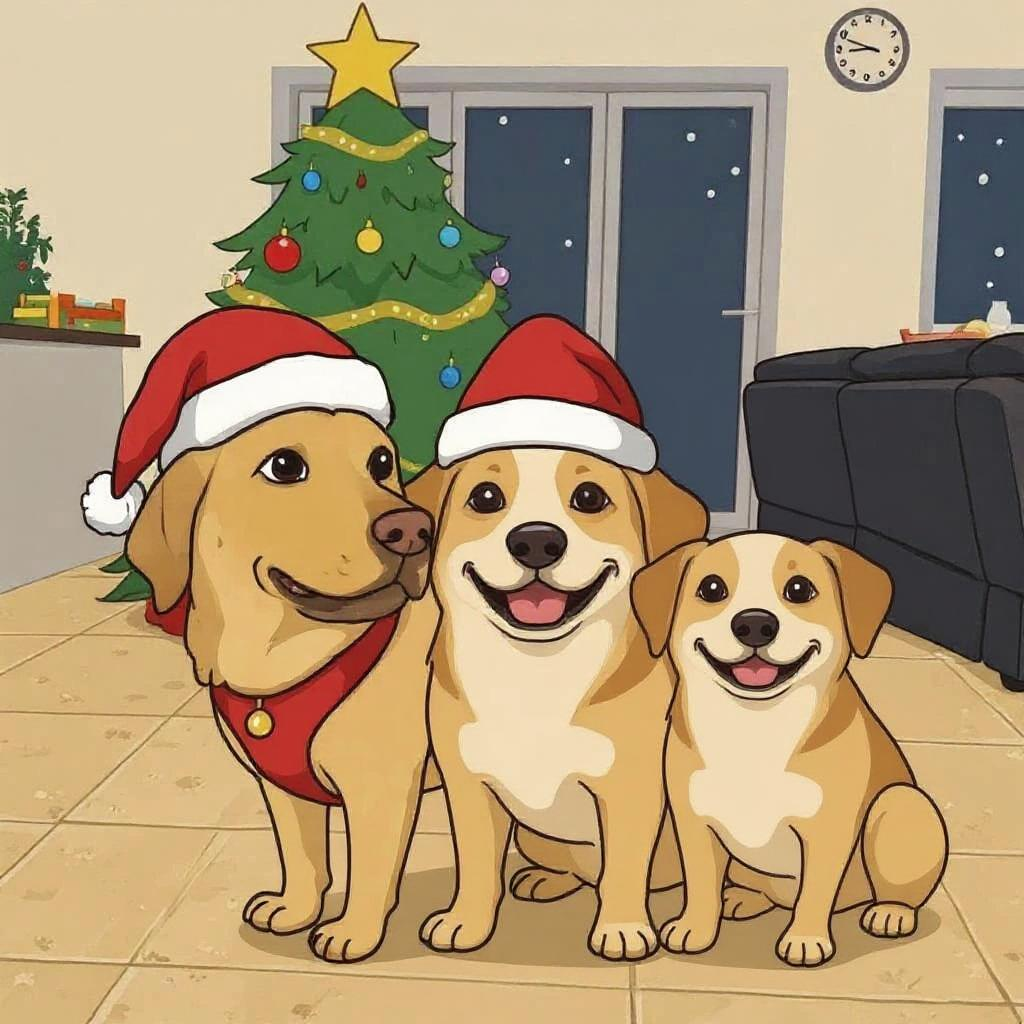
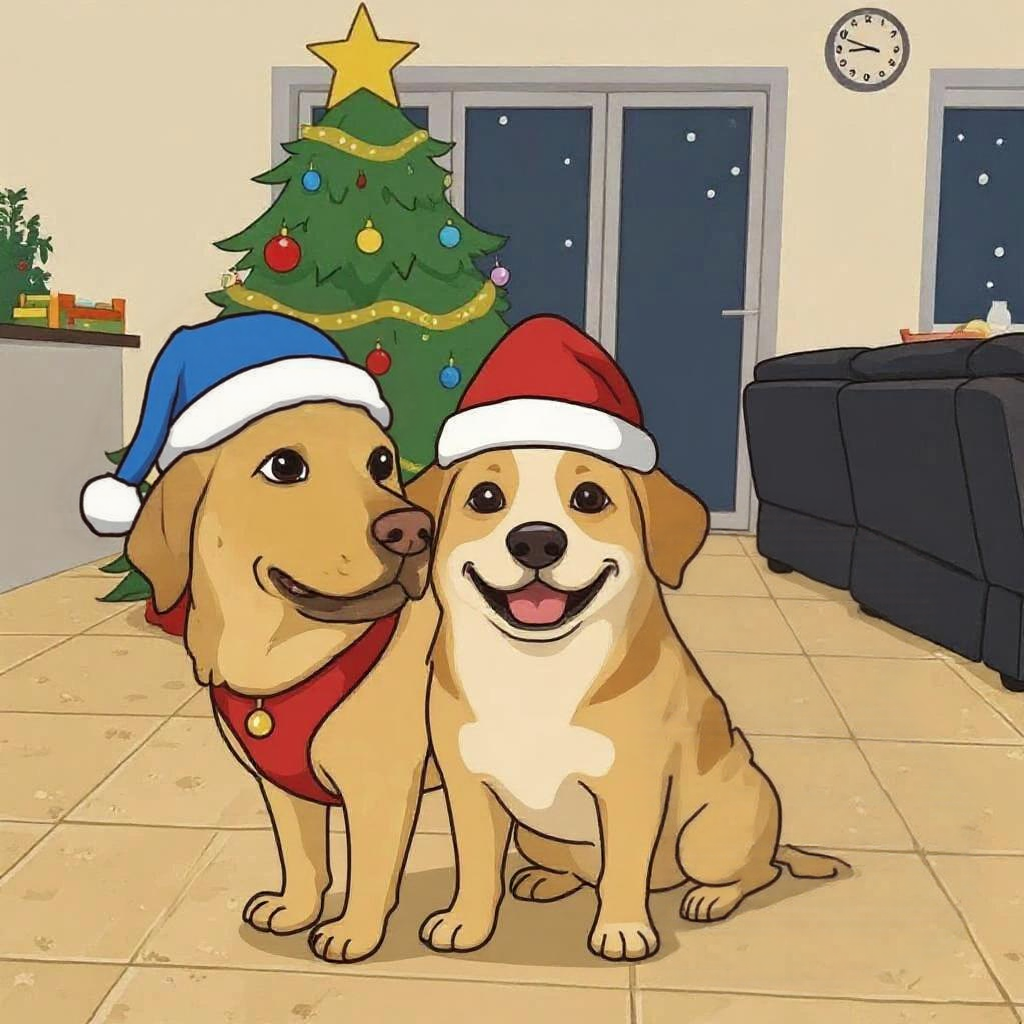
Edit any part of a photo, illustration or artwork — one object or the whole scene — using AI inpainting and plain-language instructions.
- Remove, replace or reimagine anything in your photo
- Describe the change in your own words
- Precise touch-ups or sweeping changes
- Step back through every version
How it works
Upload a photo.
Brush or describe.
See the change.
What people use it for
Removing things — a stranger in the background, a bin by the gate, a wire across the sky.
Replacing things — a grey sky for a blue one, a colour, a sign, the clutter on a table.
Adding things that were never there, described in a sentence.
Tidying a photo before it goes on the wall, which is when small distractions suddenly start to matter.
Two ways to ask
Brush when you know exactly which part should change. You paint over the area and say what belongs there, and only that area is repainted — everything outside your strokes is the photo you started with.
Describe when the change is hard to draw around: longer hair, a different time of day, a whole mood. There's nothing to brush. This one considers the whole picture rather than a patch of it, which is what lets it handle changes a brush can't reach.
Most people use both, often on the same photo.
Frequently Asked Questions
How much should I brush over?
Cover the object itself and a little of what surrounds it. That surrounding area is what the tool reads as context — it's how it works out what should sit behind the thing you're removing, or how the light should fall on whatever takes its place. Brush too tightly and it has less to go on.
Will it change the rest of my photo?
With the brush, no — only the area you painted is redone and the rest is untouched. Describe works across the whole picture, which is the trade: it can do more, and it isn't limited to one patch.
Can I go back?
Yes. Every version is listed as you work, and you can jump back to any of them — including the original photo, exactly as you uploaded it.
How should I word it?
Be specific, and be specific differently in each mode. With the brush, say what should be there instead — and if the answer is nothing, say that: "remove the bin and blend into the background" gives a cleaner result than "remove the bin" on its own.
With Describe, name the thing you mean. "Make the wall green" is fine in a room with one wall; in a room with three, it wants to be "make the left-hand wall green".
Can I keep working on it?
Yes. An edited photo can go into Repaint to become artwork, Enhance to print bigger, or Expand for more room around it.
What does it cost?
Edit is charged per run. Current costs for every tool are on the pricing page. See pricing
Better together
Every PixLab tool works on the same image and hands off to the next.